
WordPress Importer Utility: How to Import CSV Data into WordPress Easily

Have you ever wished for a genie that could complete repetitive tasks in seconds? I certainly did—especially while working on one of my content-heavy WordPress websites.
Over several months, I spent countless hours managing WordPress blogs and publishing hundreds of posts manually. Each post required multiple steps: creating the post, formatting content, uploading media, setting featured images, assigning categories and tags, and finally publishing. Even with a fast server, this process took 5–7 minutes per post, limiting me to about 20–25 posts per day.
For active bloggers, publishers, or businesses that need to upload hundreds or thousands of posts, this approach quickly becomes inefficient, time-consuming, and unscalable.
That challenge became very real when I needed to import nearly 10,000 records into a WordPress site. Manually adding them one by one simply wasn’t an option.
Why Existing WordPress Import Plugins Fell Short
While there are several free WordPress import plugins available, many had limitations:
- Essential features locked behind paid versions
- Inconsistent performance with large datasets
- Poor handling of custom fields and metadata
Driven by the need for a freemium and reliable solution, I decided to create my own tool—my own “Genie.”
What Is a WordPress Import Utility?
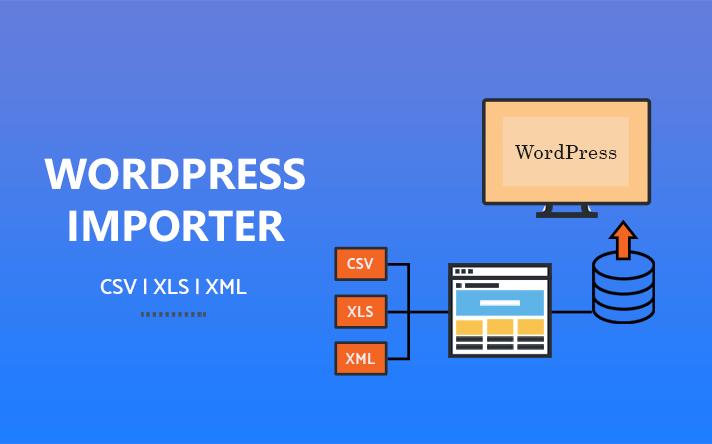
A WordPress Import Utility is an easy-to-use desktop application that allows you to bulk import content into WordPress from CSV, Excel, or XML files.
Unlike traditional plugins, this WordPress utility works offline, meaning you don’t need to stay connected to your website while transforming or preparing large datasets. This makes it especially useful for heavy data imports from external sources.
Originally built for internal use, the tool was later released publicly with additional features. It allows you to import:
- Posts and pages
- Menus and attachments
- Custom fields and metadata
- Large datasets without performance issues
Key Benefits of Using the WordPress Import Utility
- Easy setup with a user-friendly interface
- Hassle-free bulk data import
- Supports CSV, XML, and Excel files
- Imports standard and custom WordPress meta fields
- Duplicate record validation
- Maintains a history of data validations
Using the WordPress Import Utility
Once you launch the tool, you’ll see the main dashboard where all import operations are managed.
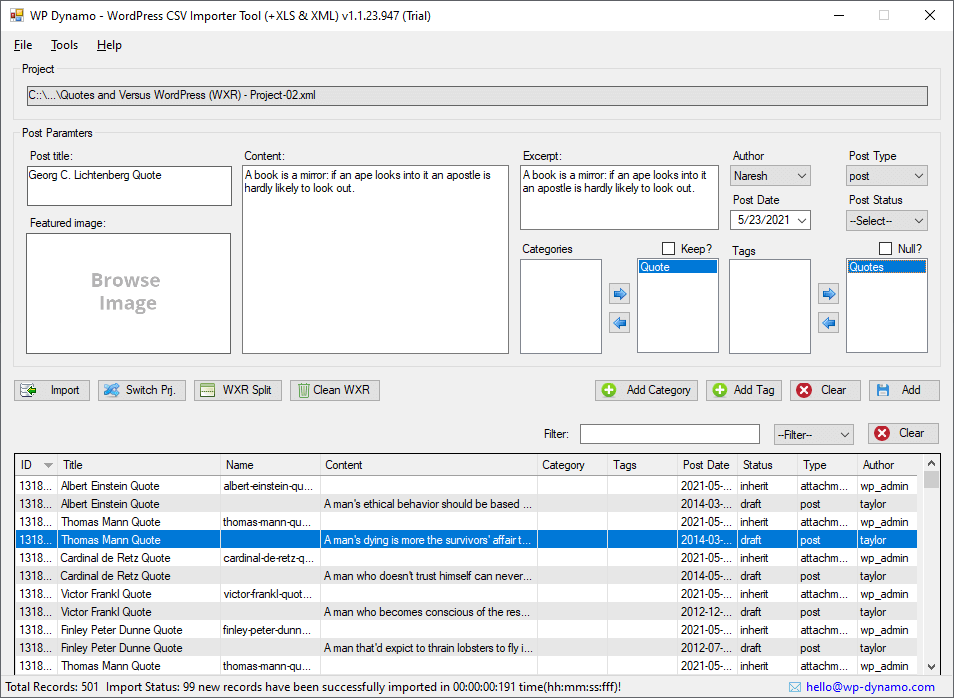
Although the tool was initially designed as a WordPress CSV import utility, it was later expanded to support additional formats.
Supported File Types:
- CSV
- XML
- Excel (XLS / XLSX)
Set the CSV Field Delimiter
CSV files may use different delimiters (comma, semicolon, tab, etc.). The tool allows you to configure this easily.
Navigate to Tools → Field Delimiter.

This ensures accurate parsing of your input file.
Importing Data from CSV, Excel, or XML Files
- Click the Import button on the main dashboard
- Select your input file (CSV, Excel, or XML)
- Ensure the first row contains column headers
- The tool reads column values using the selected delimiter
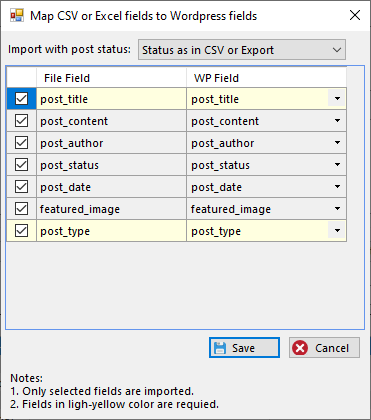
Mapping CSV or Excel Fields to WordPress Fields
Fields that match standard WordPress fields are automatically mapped.
You can also:
- Manually map fields if needed
- Override post status (Draft, Published, Pending)
- Customize how content is imported
Once mapping is complete, click Save to begin the import process.
After completion, the status bar displays:
- Number of records imported
- Updated total record count
Manually Adding Records (Optional)
Sometimes, you may want to add or adjust a few records before importing.
The WordPress Import Utility allows you to:
- Add records manually
- Edit content before final import
Setting Featured Images
While adding records manually, you can also assign featured images.
To set a featured image:
- Click the Browse Image option
- Select the image file
- Assign it as the post’s featured image
Filtering Imported Data
The tool includes built-in filtering options:
- Search for specific records using the search box
- Filter by post type using the dropdown menu
This makes managing large datasets much easier.
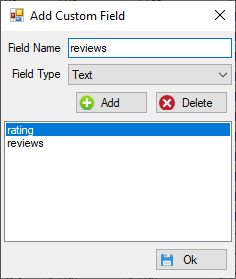
Adding Custom Fields
In addition to default WordPress fields (title, content, publish date, etc.), the tool supports custom fields.
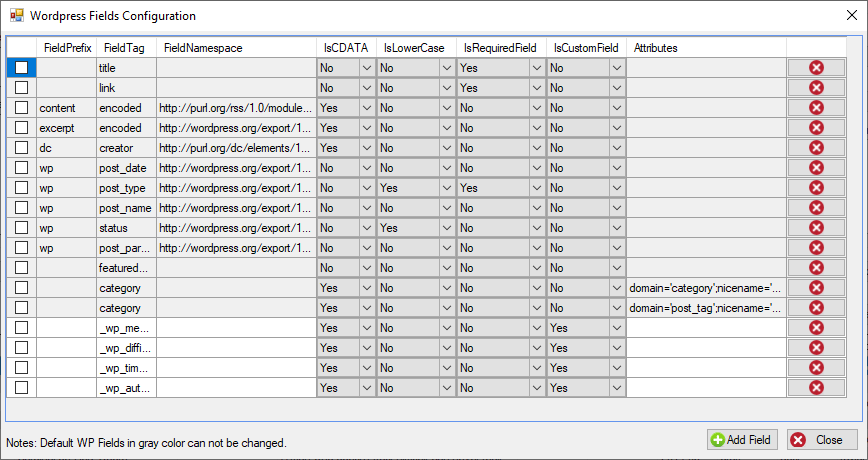
To add a custom field:
- Click Add Field
- Enter the custom field name
- Map it to your CSV or Excel column
You can add multiple custom fields as needed.
Importing Data into WordPress
Once your data is prepared:
- Log in to your WordPress dashboard
- Go to Tools → Import
- Select WordPress
- Upload the XML file generated by the import utility
- Follow the on-screen instructions
Your content will be imported successfully.
Alternative Options: WordPress Plugins for Importing CSV & Excel Data
While a dedicated WordPress import utility is ideal for handling large datasets offline, some users may prefer WordPress plugins that work directly inside the dashboard. Below are popular plugin-based alternatives for importing data from CSV, Excel, or XML files into WordPress.
WP All Import
One of the most widely used WordPress import plugins, WP All Import supports importing posts, pages, custom post types, users, and WooCommerce products.
Key highlights:
- Drag-and-drop field mapping
- Supports CSV, XML, and Excel files
- Advanced custom fields (ACF) compatibility
- Large imports may require the paid version
WP Ultimate CSV Importer
WP Ultimate CSV Importer is your all-in-one WP import export solution to easily upload, insert, and manage WordPress content in bulk. It’ a beginner-friendly plugin designed specifically for CSV-based imports and exports.
Key highlights:
- Imports posts, pages, users, and custom post types
- Supports media and featured images
- CSV and Excel file compatibility
- Some advanced features locked behind premium plans
Import WP
Import WP is a lightweight plugin focused on simplicity and performance for small-to-medium imports.
Key highlights:
- Easy CSV and XML imports
- Supports scheduled imports
- Custom field and taxonomy mapping
- Best suited for moderate data sizes
WP CSV Importer
A straightforward plugin for importing CSV data into WordPress with minimal configuration.
Key highlights:
- Simple interface
- Supports posts and pages
- Limited flexibility for complex imports
- Not ideal for very large datasets
WP All Import – Product Import for WooCommerce
WP All Import – Product Import for WooCommerce enables importing data from your XML, CSV, or Excel into the WooCommerce fields. It’s best suited for WooCommerce users who need to import product data in bulk.
Key highlights:
- Designed specifically for WooCommerce products
- Supports CSV-based product imports
- Handles pricing, inventory, and attributes
- Not suitable for general WordPress content
Plugin vs Desktop Import Utility: Which Should You Choose?
WordPress Import Plugins are ideal when:
- You’re importing small to medium datasets
- You want everything managed inside WordPress
- You don’t need heavy data preprocessing
A Desktop WordPress Import Utility is better when:
- You’re importing thousands of records
- You want offline data validation and transformation
- You need better performance and stability
- You want full control over custom fields and metadata
Final Thoughts: A Powerful WordPress Import Utility
Bulk importing content into WordPress doesn’t have to be complicated or time-consuming. This WordPress CSV import utility simplifies the entire process—from data preparation to final publishing. The tool is completely free to download and you may request access via contact form.
If you regularly work with large WordPress datasets, this utility can save you hours of manual work and significantly improve productivity.
Disclaimer: This post may include affiliate links. If you click one of them, we may receive a small commission at no extra cost to you. Thank you for your support.